Troubleshooting Spotify Hotkeys for Tab Hoarders
If the shortcuts do nothing, start here.
💡 Overview
When a shortcut fails, it is usually one of five things. Let the popup find the Web Player tab for you.
Check that open.spotify.com is open in a Chrome tab and that you have started playback at least once. Close the Spotify desktop app to avoid routing conflicts. Confirm the commands are assigned in chrome://extensions/shortcuts, and set the scope to Global if you want them outside Chrome. For private windows, enable Allow in incognito. If another app uses the same combination, rebind it.
🧭 A Day of Tab Hoarders
Your tab strip is a sea of favicons.
The problem: The music tab drowns among them.
The fix: Let the popup find the Web Player tab for you.
🚀 Try It in Three Steps
- Confirm the Web Player tab is open and has played something.
- Check chrome://extensions/shortcuts for assigned keys and scope.
- Close the desktop app and test again.
✨ What You Get
- Playback speed 0.5x to 2.0x: Presets at 1.0x, 1.25x, 1.5x and 2.0x, locked across track changes.
- Shortcut profiles: Standard, one-handed WASD, compact Alt+arrows and function-key presets.
- Local focus analytics: Daily and weekly focus time, a seven-day chart and top artists and tracks, all stored on your device.
| Task | Switching tabs | Spotify-Web Playback Controller |
|---|---|---|
| Resource use | A full tab in the foreground | Observer-based, near-zero overhead |
| Skipping a track | Switch window, click next, switch back | Shift+Alt+Right from any window |
| Liking a song | Open the tab, click the heart | Tap the heart in the popup or press L |
| Pausing music | Find the tab, click pause, return | One keystroke |
Note: it works with the Spotify Web Player at open.spotify.com only, and does not control the desktop app.
📸 See It in Action
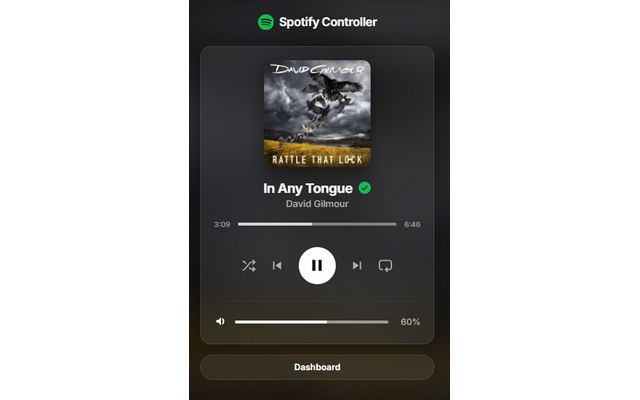
Mini-Player
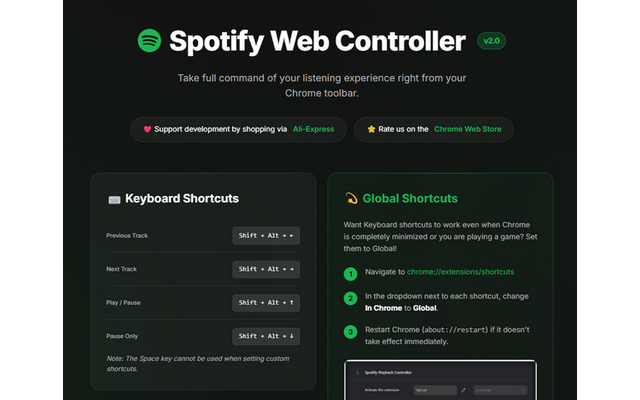
Dashboard
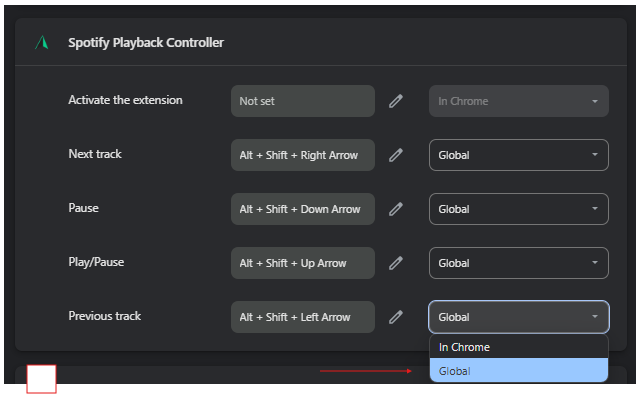
Shortcuts
Control Spotify Without Leaving Your Work
Global-capable hotkeys, a mini-player and local-only analytics for the Spotify Web Player.
❓ Frequently Asked Questions
Most often the Web Player tab is not open, or the shortcut is unassigned or conflicts with another app.
Enable Allow in incognito for the extension at chrome://extensions.
It can be if you spend your day living with dozens of tabs. Let the popup find the Web Player tab for you.