Spotify Sleep Timer for DevOps Engineers
Quick timers for 15, 30, 45 or 60 minutes with a live countdown.
💡 Overview
Some music is meant to end on its own. Dashboards, logs and terminals stay up around the clock.
The smart background sleep timer offers quick presets of 15, 30, 45 and 60 minutes. A live countdown badge shows time remaining, and the timer runs on background alarms, so it keeps counting after you close the popup. When time is up, playback pauses automatically.
🧭 A Day of DevOps Engineers
Dashboards, logs and terminals stay up around the clock.
The problem: During an incident, no one should be clicking around for a music tab.
The fix: Use the pause-only shortcut the moment an alert fires so your attention goes to the alert.
🚀 Try It in Three Steps
- Open the popup and choose a sleep timer preset.
- Watch the countdown badge for the time remaining.
- Let playback pause itself when the timer ends.
✨ What You Get
- Playback speed 0.5x to 2.0x: Presets at 1.0x, 1.25x, 1.5x and 2.0x, locked across track changes.
- Mouse-wheel volume: Scroll over the player for fine volume steps, plus one-tap mute memory.
- Sleep timer: Presets of 15, 30, 45 and 60 minutes with a live countdown that auto-pauses playback.
| Task | Switching tabs | Spotify-Web Playback Controller |
|---|---|---|
| Resource use | A full tab in the foreground | Observer-based, near-zero overhead |
| Volume change | Open the tab, drag a slider | Scroll the mouse wheel over the popup |
| Liking a song | Open the tab, click the heart | Tap the heart in the popup or press L |
| Focus impact | Context switch every time | Your work window keeps focus |
Note: it works with the Spotify Web Player at open.spotify.com only, and does not control the desktop app.
📸 See It in Action
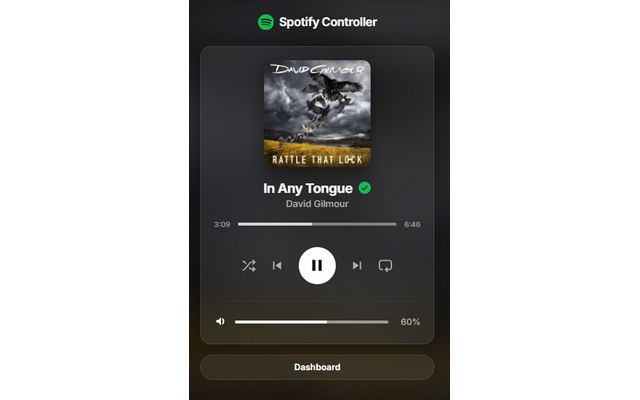
Mini-Player
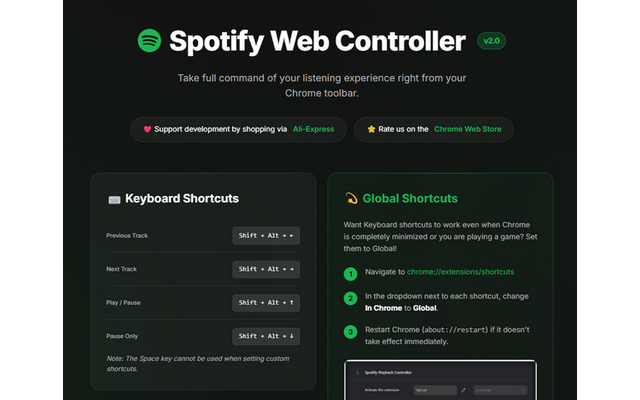
Dashboard
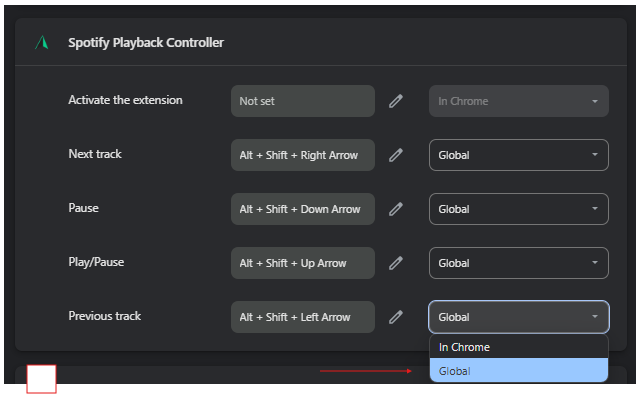
Shortcuts
Control Spotify Without Leaving Your Work
Global-capable hotkeys, a mini-player and local-only analytics for the Spotify Web Player.
❓ Frequently Asked Questions
Quick presets of 15, 30, 45 and 60 minutes.
Yes. It runs on background alarms and pauses playback when it finishes.
It can be if you spend your day monitoring dashboards. Use the pause-only shortcut the moment an alert fires so your attention goes to the alert.