Control Spotify From a Second Monitor While hosting parties
Park the Web Player on one screen and drive it from the other.
💡 Overview
A second screen is a luxury, until it fills with windows. Guests want the next song, and you want to stay in the conversation.
Because the extension talks to the Web Player tab wherever it lives, you can leave it on another monitor, or even in another Chrome window, and still control it from the popup or by hotkey. Your main window stays untouched.
🧭 A Day of Party Hosts
Guests want the next song, and you want to stay in the conversation.
The problem: Running to the laptop to change tracks pulls you away from your guests.
The fix: Open the mini-player on a side display and use next/previous shortcuts from across the room.
🚀 Try It in Three Steps
- Move the Spotify tab to a second window or monitor.
- Pin the extension on your main window.
- Control playback from the popup or with the shortcuts.
✨ What You Get
- Sleep timer: Presets of 15, 30, 45 and 60 minutes with a live countdown that auto-pauses playback.
- Four default hotkeys: Shift+Alt+Up toggles play and pause, Right skips, Left goes back and Down pauses only.
- Dynamic album-art backdrops: A blurred, color-adaptive background drawn from the current artwork, in dark or light theme.
| Task | Switching tabs | Spotify-Web Playback Controller |
|---|---|---|
| Skipping a track | Switch window, click next, switch back | Shift+Alt+Right from any window |
| Liking a song | Open the tab, click the heart | Tap the heart in the popup or press L |
| Privacy | Depends on the tool | No credentials collected, local analytics |
| Pausing music | Find the tab, click pause, return | One keystroke |
Note: it works with the Spotify Web Player at open.spotify.com only, and does not control the desktop app.
📸 See It in Action
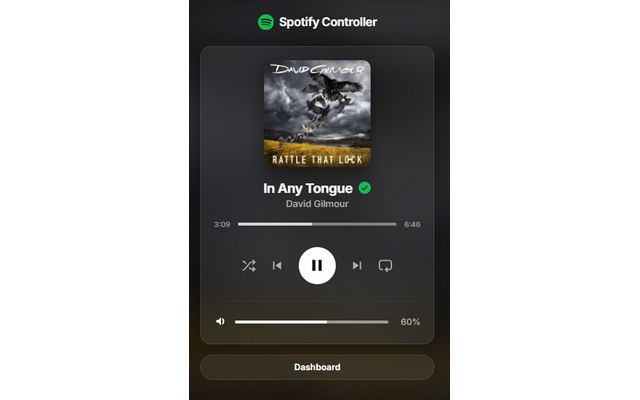
Mini-Player
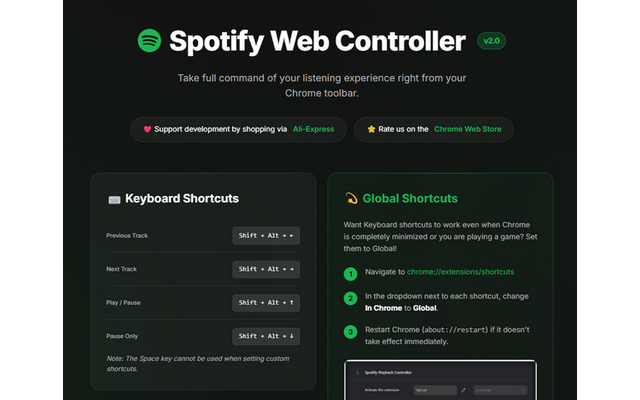
Dashboard
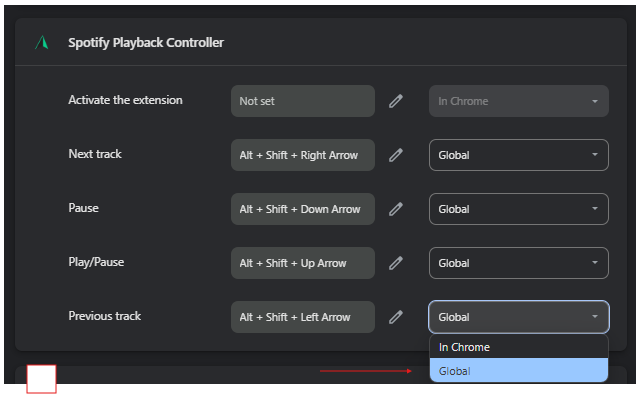
Shortcuts
Control Spotify Without Leaving Your Work
Global-capable hotkeys, a mini-player and local-only analytics for the Spotify Web Player.
❓ Frequently Asked Questions
No. It just needs to be open in Chrome.
The extension targets the Web Player tab at open.spotify.com, wherever it is open in Chrome.
It can be if you spend your day hosting parties. Open the mini-player on a side display and use next/previous shortcuts from across the room.