Control Spotify From a Second Monitor While monitoring dashboards
Park the Web Player on one screen and drive it from the other.
💡 Overview
A second screen is a luxury, until it fills with windows. Dashboards, logs and terminals stay up around the clock.
Because the extension talks to the Web Player tab wherever it lives, you can leave it on another monitor, or even in another Chrome window, and still control it from the popup or by hotkey. Your main window stays untouched.
🧭 A Day of DevOps Engineers
Dashboards, logs and terminals stay up around the clock.
The problem: During an incident, no one should be clicking around for a music tab.
The fix: Use the pause-only shortcut the moment an alert fires so your attention goes to the alert.
🚀 Try It in Three Steps
- Move the Spotify tab to a second window or monitor.
- Pin the extension on your main window.
- Control playback from the popup or with the shortcuts.
✨ What You Get
- Mouse-wheel volume: Scroll over the player for fine volume steps, plus one-tap mute memory.
- Shortcut profiles: Standard, one-handed WASD, compact Alt+arrows and function-key presets.
- Local focus analytics: Daily and weekly focus time, a seven-day chart and top artists and tracks, all stored on your device.
| Task | Switching tabs | Spotify-Web Playback Controller |
|---|---|---|
| Privacy | Depends on the tool | No credentials collected, local analytics |
| Focus impact | Context switch every time | Your work window keeps focus |
| Pausing music | Find the tab, click pause, return | One keystroke |
| Skipping a track | Switch window, click next, switch back | Shift+Alt+Right from any window |
Note: it works with the Spotify Web Player at open.spotify.com only, and does not control the desktop app.
📸 See It in Action
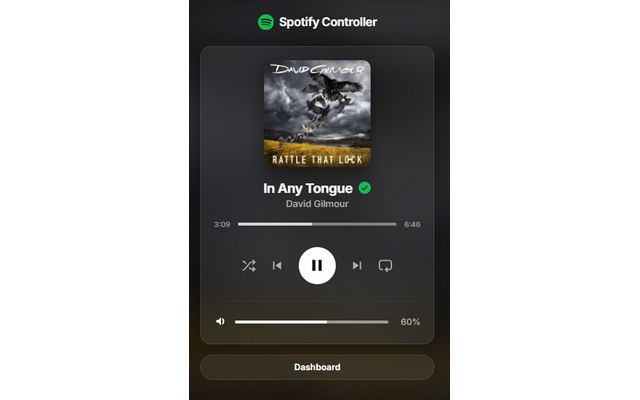
Mini-Player
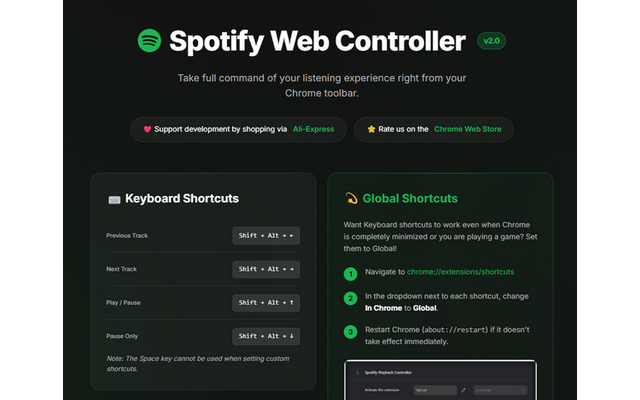
Dashboard
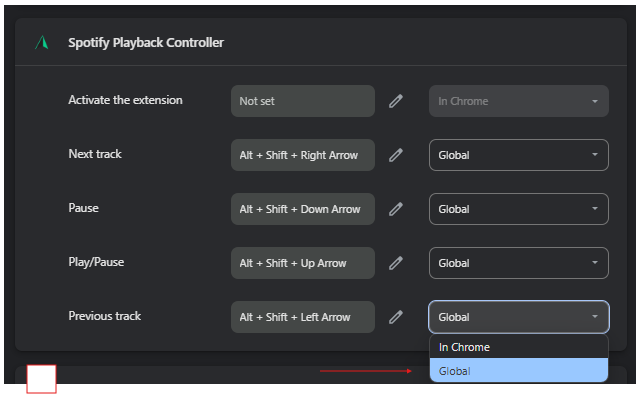
Shortcuts
Control Spotify Without Leaving Your Work
Global-capable hotkeys, a mini-player and local-only analytics for the Spotify Web Player.
❓ Frequently Asked Questions
No. It just needs to be open in Chrome.
The extension targets the Web Player tab at open.spotify.com, wherever it is open in Chrome.
It can be if you spend your day monitoring dashboards. Use the pause-only shortcut the moment an alert fires so your attention goes to the alert.