Stay in Flow: A Spotify Control Routine for Dual-Monitor Power Users
A simple routine for starting, pausing and ending music without friction.
💡 Overview
Flow is easy to lose and hard to get back. Two screens still run out of room for a music window.
A routine helps: open the Web Player in a pinned tab, choose a playlist once, use Shift+Alt+Up to start, Shift+Alt+Right to skip, and Shift+Alt+Down when you need silence. Use the sleep timer for the end of a session. Keep everything else out of your day.
🧭 A Day of Dual-Monitor Power Users
Two screens still run out of room for a music window.
The problem: Tab-switching on one screen can reorder your whole layout.
The fix: Keep the Web Player on the second monitor and control it from either screen.
🚀 Try It in Three Steps
- Set one playlist at the start of the session.
- Use only shortcuts during the session.
- Use the sleep timer or pause-only at the end.
✨ What You Get
- Floating mini-player: Popup with play, pause, next, previous, shuffle, repeat, seek and a Liked Songs toggle.
- Device quick-switcher: One click to the Spotify Connect device drawer from the mini-player header.
- Playback speed 0.5x to 2.0x: Presets at 1.0x, 1.25x, 1.5x and 2.0x, locked across track changes.
| Task | Switching tabs | Spotify-Web Playback Controller |
|---|---|---|
| Volume change | Open the tab, drag a slider | Scroll the mouse wheel over the popup |
| Pausing music | Find the tab, click pause, return | One keystroke |
| Scope | Any app, any tab | Spotify Web Player (open.spotify.com) only |
| Skipping a track | Switch window, click next, switch back | Shift+Alt+Right from any window |
Note: it works with the Spotify Web Player at open.spotify.com only, and does not control the desktop app.
📸 See It in Action
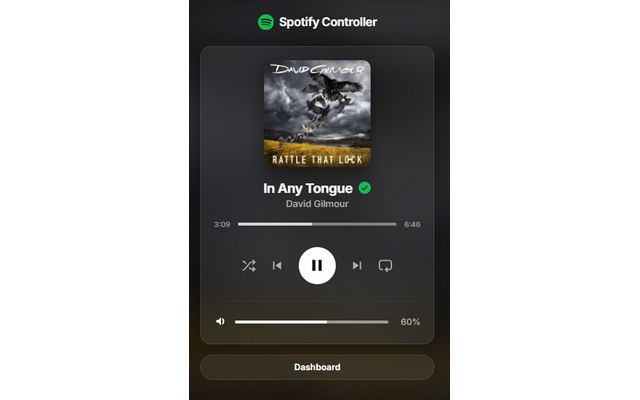
Mini-Player
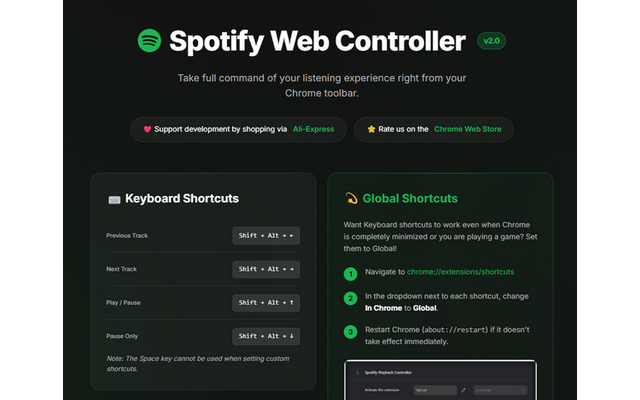
Dashboard
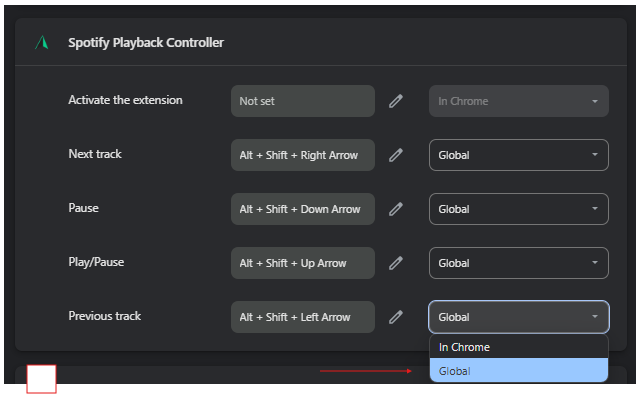
Shortcuts
Control Spotify Without Leaving Your Work
Global-capable hotkeys, a mini-player and local-only analytics for the Spotify Web Player.
❓ Frequently Asked Questions
Choose once, then control only through shortcuts or the popup.
That is up to you. Many people find instrumental music less distracting when writing or coding.
It can be if you spend your day working on dual monitors. Keep the Web Player on the second monitor and control it from either screen.