Spotify Playback Controller Checklist for Home Office Professionals
Everything to check before and after you install.
💡 Overview
A checklist beats guesswork. Your desk is your office, kitchen table and sometimes classroom.
Before: confirm you use the Web Player and read the permissions. During: pin the icon, test the four hotkeys, optionally set Global scope, enable Incognito if needed. After: pick a shortcut profile, set sleep timer habits and review the dashboard.
🧭 A Day of Home Office Professionals
Your desk is your office, kitchen table and sometimes classroom.
The problem: Switching to a music tab blurs work and leisure.
The fix: Use the popup so music stays a background layer.
🚀 Try It in Three Steps
- Confirm you use open.spotify.com in Chrome.
- Pin the extension, test the hotkeys, enable Global if desired.
- Review the dashboard, preset and privacy options.
✨ What You Get
- Mouse-wheel volume: Scroll over the player for fine volume steps, plus one-tap mute memory.
- Sleep timer: Presets of 15, 30, 45 and 60 minutes with a live countdown that auto-pauses playback.
- Playback speed 0.5x to 2.0x: Presets at 1.0x, 1.25x, 1.5x and 2.0x, locked across track changes.
| Task | Switching tabs | Spotify-Web Playback Controller |
|---|---|---|
| Privacy | Depends on the tool | No credentials collected, local analytics |
| Focus impact | Context switch every time | Your work window keeps focus |
| Pausing music | Find the tab, click pause, return | One keystroke |
| Scope | Any app, any tab | Spotify Web Player (open.spotify.com) only |
Note: it works with the Spotify Web Player at open.spotify.com only, and does not control the desktop app.
📸 See It in Action
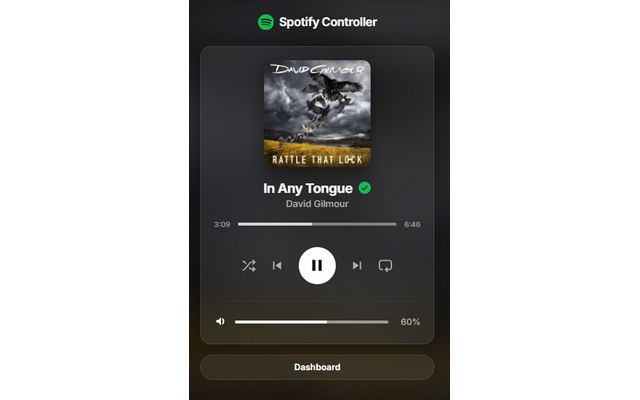
Mini-Player
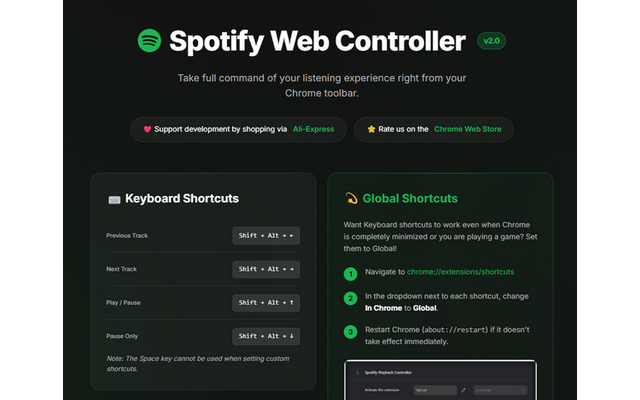
Dashboard
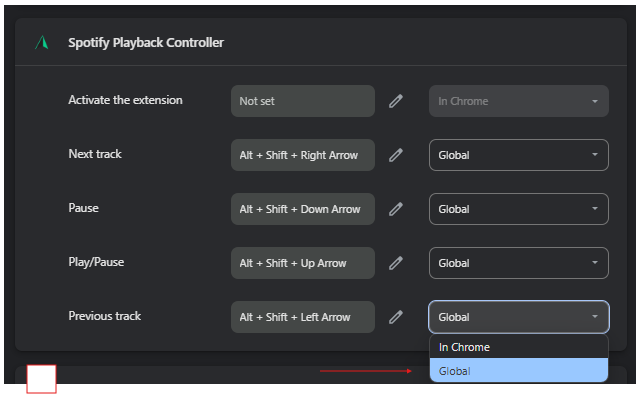
Shortcuts
Control Spotify Without Leaving Your Work
Global-capable hotkeys, a mini-player and local-only analytics for the Spotify Web Player.
❓ Frequently Asked Questions
That you use the Spotify Web Player in Chrome, because the extension does not control the desktop app.
That shortcuts do not conflict with other apps, and that Global scope is set where you want it.
It can be if you spend your day working from a home office. Use the popup so music stays a background layer.