Spotify Connect Device Switcher for Online Teachers
Jump playback between the Web Player and other devices.
💡 Overview
Sometimes the right speaker is not the one in front of you. Slides, a class roster and a video call share one window.
The mini-player header includes a one-click trigger for the device drawer, which lets you switch playback between the Web Player, desktop, smart speakers and phone. You can move music to another room without opening the Spotify tab.
🧭 A Day of Online Teachers
Slides, a class roster and a video call share one window.
The problem: Background music must stop the instant class begins, without scrambling for a tab.
The fix: Use pause-only on the shortcut before you unmute, and keep volume low with the scroll wheel in between.
🚀 Try It in Three Steps
- Open the popup and use the device icon in the header.
- Pick a device from the drawer.
- Return to the Web Player the same way.
✨ What You Get
- Mouse-wheel volume: Scroll over the player for fine volume steps, plus one-tap mute memory.
- Device quick-switcher: One click to the Spotify Connect device drawer from the mini-player header.
- Local focus analytics: Daily and weekly focus time, a seven-day chart and top artists and tracks, all stored on your device.
| Task | Switching tabs | Spotify-Web Playback Controller |
|---|---|---|
| Scope | Any app, any tab | Spotify Web Player (open.spotify.com) only |
| Skipping a track | Switch window, click next, switch back | Shift+Alt+Right from any window |
| Focus impact | Context switch every time | Your work window keeps focus |
| Resource use | A full tab in the foreground | Observer-based, near-zero overhead |
Note: it works with the Spotify Web Player at open.spotify.com only, and does not control the desktop app.
📸 See It in Action
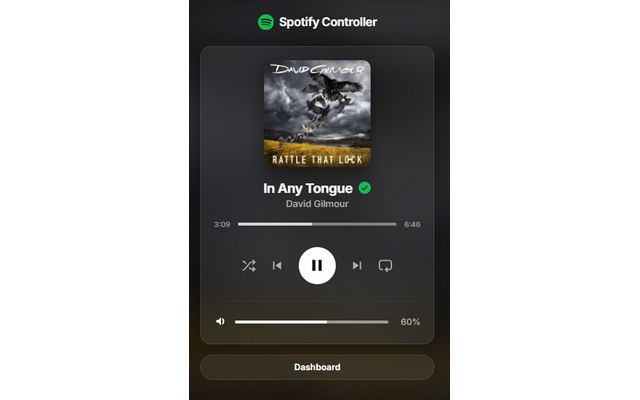
Mini-Player
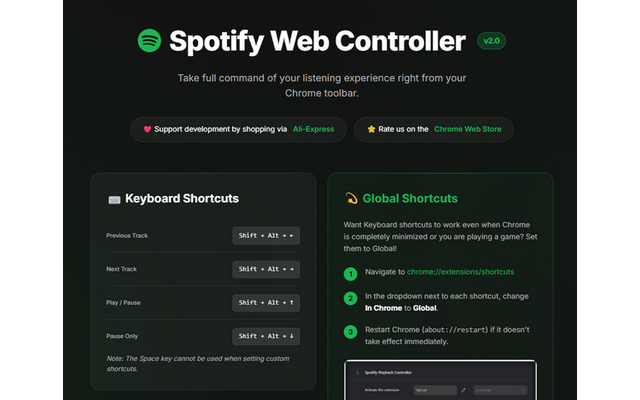
Dashboard
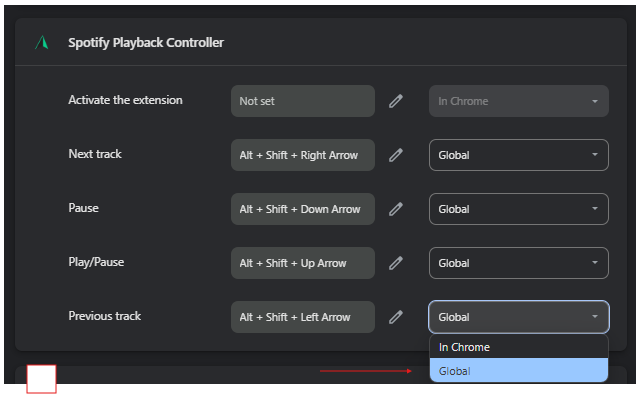
Shortcuts
Control Spotify Without Leaving Your Work
Global-capable hotkeys, a mini-player and local-only analytics for the Spotify Web Player.
❓ Frequently Asked Questions
Devices that Spotify Connect shows, such as Web Player, desktop, smart speakers and phone.
No. It controls the Web Player and helps you change the playback device.
It can be if you spend your day teaching online. Use pause-only on the shortcut before you unmute, and keep volume low with the scroll wheel in between.