Setting Up Spotify Hotkeys for Linux Users in Two Minutes
Install, pin, test and tune the shortcuts.
💡 Overview
Setup should take less time than your next coffee. An extension in the browser works the same regardless of your desktop environment.
The extension needs no account. Open the Web Player, pin the extension and try the four default shortcuts. After that, optional steps are choosing a shortcut profile in the dashboard, enabling Global scope for system-wide use and allowing Incognito if you use private windows.
🧭 A Day of Linux Users
Chrome runs on Linux, and so does the Web Player.
The problem: Desktop media daemons may not see your web tab.
The fix: An extension in the browser works the same regardless of your desktop environment.
🚀 Try It in Three Steps
- Install from the Chrome Web Store and pin the icon.
- Open open.spotify.com and press play.
- Test Shift+Alt+Up, Right, Left and Down, then adjust at chrome://extensions/shortcuts.
✨ What You Get
- Sleep timer: Presets of 15, 30, 45 and 60 minutes with a live countdown that auto-pauses playback.
- Zero-polling design: A MutationObserver updates the UI only when the page changes, keeping CPU and memory use low.
- Playback speed 0.5x to 2.0x: Presets at 1.0x, 1.25x, 1.5x and 2.0x, locked across track changes.
| Task | Switching tabs | Spotify-Web Playback Controller |
|---|---|---|
| Focus impact | Context switch every time | Your work window keeps focus |
| Skipping a track | Switch window, click next, switch back | Shift+Alt+Right from any window |
| Privacy | Depends on the tool | No credentials collected, local analytics |
| Scope | Any app, any tab | Spotify Web Player (open.spotify.com) only |
Note: it works with the Spotify Web Player at open.spotify.com only, and does not control the desktop app.
📸 See It in Action
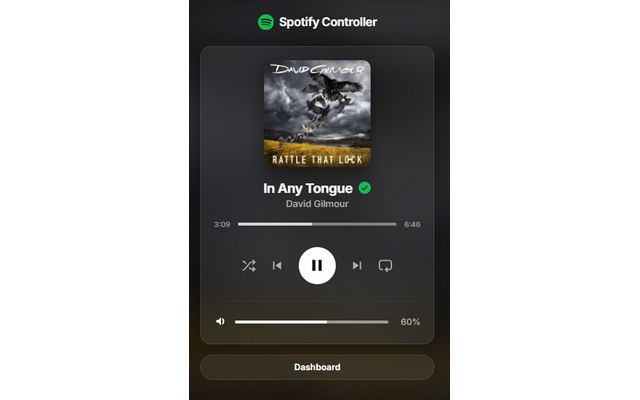
Mini-Player
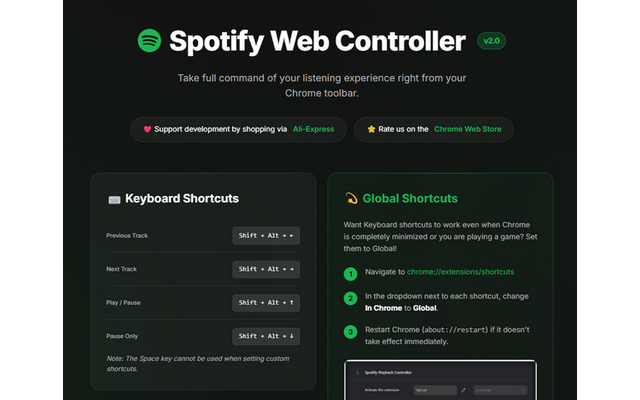
Dashboard
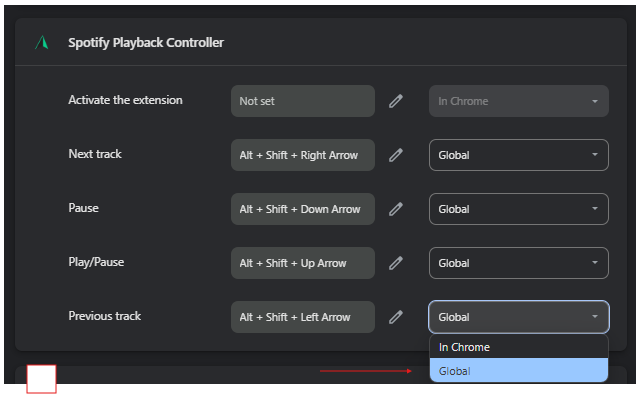
Shortcuts
Control Spotify Without Leaving Your Work
Global-capable hotkeys, a mini-player and local-only analytics for the Spotify Web Player.
❓ Frequently Asked Questions
No. It works with the Spotify Web Player you are already signed into.
Click the puzzle icon in Chrome toolbar and pin the extension.
It can be if you spend your day working on Linux. An extension in the browser works the same regardless of your desktop environment.