One-Handed Spotify Control for Online Teachers
Shortcut profiles including a WASD-style one-handed layout.
💡 Overview
Sometimes one hand is busy. Slides, a class roster and a video call share one window.
Beyond the default Shift+Alt+arrow set, the dashboard offers shortcut profiles: Standard, a one-handed WASD set using Alt+Shift with W, S, A and D, a compact Alt+arrows set and a function-key set using Ctrl with F6 to F9. Pick whichever matches the hand that is free.
🧭 A Day of Online Teachers
Slides, a class roster and a video call share one window.
The problem: Background music must stop the instant class begins, without scrambling for a tab.
The fix: Use pause-only on the shortcut before you unmute, and keep volume low with the scroll wheel in between.
🚀 Try It in Three Steps
- Open the dashboard from the extension.
- Choose a shortcut profile such as WASD or function keys.
- Check the bindings in chrome://extensions/shortcuts.
✨ What You Get
- Local focus analytics: Daily and weekly focus time, a seven-day chart and top artists and tracks, all stored on your device.
- Sleep timer: Presets of 15, 30, 45 and 60 minutes with a live countdown that auto-pauses playback.
- Dynamic album-art backdrops: A blurred, color-adaptive background drawn from the current artwork, in dark or light theme.
| Task | Switching tabs | Spotify-Web Playback Controller |
|---|---|---|
| Skipping a track | Switch window, click next, switch back | Shift+Alt+Right from any window |
| Resource use | A full tab in the foreground | Observer-based, near-zero overhead |
| Pausing music | Find the tab, click pause, return | One keystroke |
| Scope | Any app, any tab | Spotify Web Player (open.spotify.com) only |
Note: it works with the Spotify Web Player at open.spotify.com only, and does not control the desktop app.
📸 See It in Action
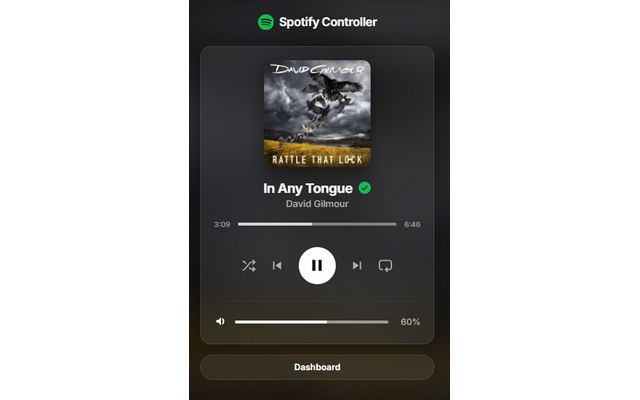
Mini-Player
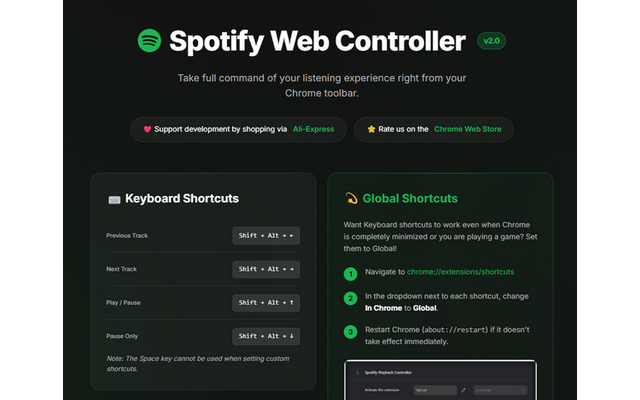
Dashboard
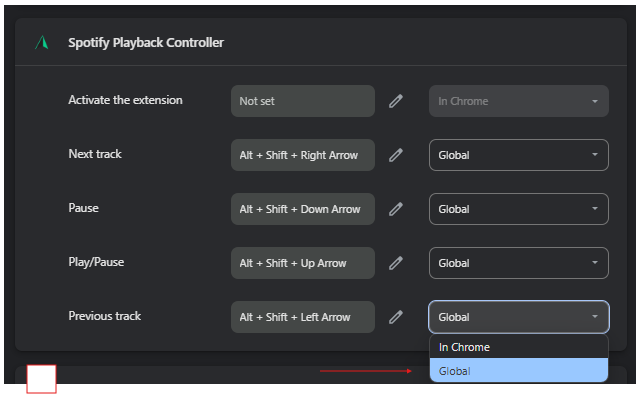
Shortcuts
Control Spotify Without Leaving Your Work
Global-capable hotkeys, a mini-player and local-only analytics for the Spotify Web Player.
❓ Frequently Asked Questions
Standard (Shift+Alt+arrows), One-Handed WASD, Compact (Alt+arrows) and Function Keys (Ctrl+F6 to F9).
You can rebind individual commands in chrome://extensions/shortcuts.
It can be if you spend your day teaching online. Use pause-only on the shortcut before you unmute, and keep volume low with the scroll wheel in between.