Like Songs Without Opening Spotify While working on a Windows PC
A one-tap Liked Songs toggle that stays in sync.
💡 Overview
Good songs show up at inconvenient times. Alt-tabbing to Spotify breaks flow.
The popup includes a heart toggle that mirrors your Liked Songs state on the Web Player. Tap it, or press L inside the popup, to like or unlike the current track. The change is reflected immediately, so you can save a song and carry on without ever opening the Spotify tab.
🧭 A Day of Windows Users
Windows lets you set Chrome extension shortcuts to Global scope.
The problem: Alt-tabbing to Spotify breaks flow.
The fix: Open chrome://extensions/shortcuts and set the scope to Global where you want it.
🚀 Try It in Three Steps
- Hear a song you want to keep.
- Open the popup and tap the heart, or press L.
- Find it later in your Liked Songs library on Spotify.
✨ What You Get
- Local focus analytics: Daily and weekly focus time, a seven-day chart and top artists and tracks, all stored on your device.
- Zero-polling design: A MutationObserver updates the UI only when the page changes, keeping CPU and memory use low.
- Device quick-switcher: One click to the Spotify Connect device drawer from the mini-player header.
| Task | Switching tabs | Spotify-Web Playback Controller |
|---|---|---|
| Liking a song | Open the tab, click the heart | Tap the heart in the popup or press L |
| Privacy | Depends on the tool | No credentials collected, local analytics |
| Volume change | Open the tab, drag a slider | Scroll the mouse wheel over the popup |
| Scope | Any app, any tab | Spotify Web Player (open.spotify.com) only |
Note: it works with the Spotify Web Player at open.spotify.com only, and does not control the desktop app.
📸 See It in Action
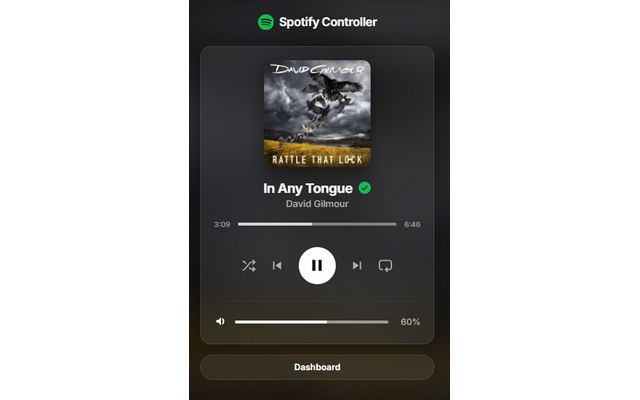
Mini-Player
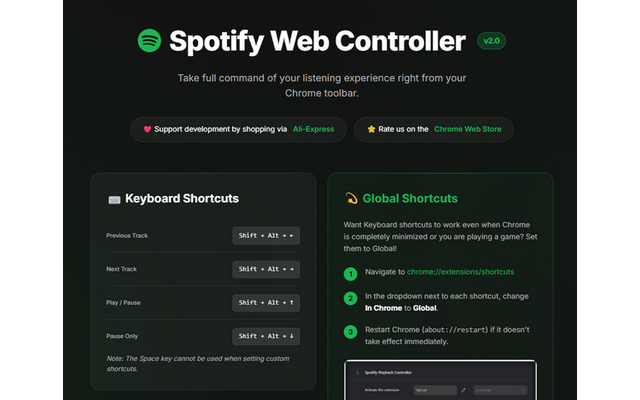
Dashboard
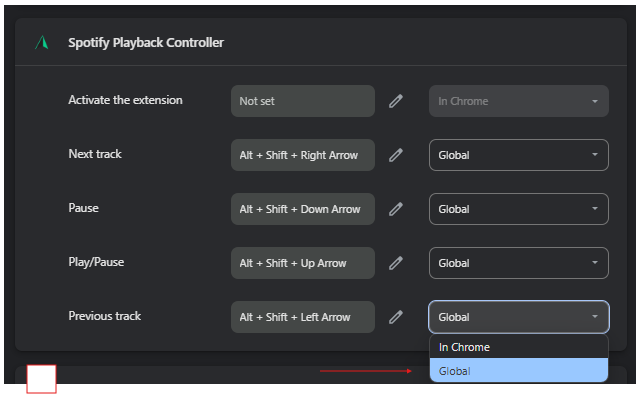
Shortcuts
Control Spotify Without Leaving Your Work
Global-capable hotkeys, a mini-player and local-only analytics for the Spotify Web Player.
❓ Frequently Asked Questions
It controls the like button on the Web Player, so your Liked Songs library updates.
Inside the popup, press L. Global commands cover play, pause, next and previous.
It can be if you spend your day working on a Windows PC. Open chrome://extensions/shortcuts and set the scope to Global where you want it.