Like Songs Without Opening Spotify While working on a Chromebook
A one-tap Liked Songs toggle that stays in sync.
💡 Overview
Good songs show up at inconvenient times. Background music tabs compete with everything else in Chrome.
The popup includes a heart toggle that mirrors your Liked Songs state on the Web Player. Tap it, or press L inside the popup, to like or unlike the current track. The change is reflected immediately, so you can save a song and carry on without ever opening the Spotify tab.
🧭 A Day of Chromebook Users
Chrome is your whole operating system, so extensions are first-class.
The problem: Background music tabs compete with everything else in Chrome.
The fix: The Web Player plus an extension is a natural fit on Chrome OS.
🚀 Try It in Three Steps
- Hear a song you want to keep.
- Open the popup and tap the heart, or press L.
- Find it later in your Liked Songs library on Spotify.
✨ What You Get
- Mouse-wheel volume: Scroll over the player for fine volume steps, plus one-tap mute memory.
- Four default hotkeys: Shift+Alt+Up toggles play and pause, Right skips, Left goes back and Down pauses only.
- Sleep timer: Presets of 15, 30, 45 and 60 minutes with a live countdown that auto-pauses playback.
| Task | Switching tabs | Spotify-Web Playback Controller |
|---|---|---|
| Liking a song | Open the tab, click the heart | Tap the heart in the popup or press L |
| Pausing music | Find the tab, click pause, return | One keystroke |
| Focus impact | Context switch every time | Your work window keeps focus |
| Scope | Any app, any tab | Spotify Web Player (open.spotify.com) only |
Note: it works with the Spotify Web Player at open.spotify.com only, and does not control the desktop app.
📸 See It in Action
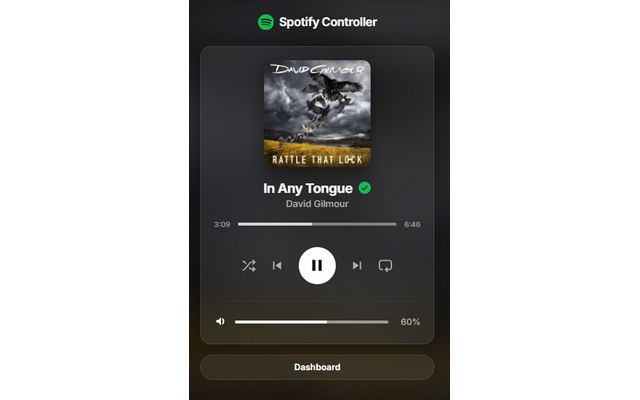
Mini-Player
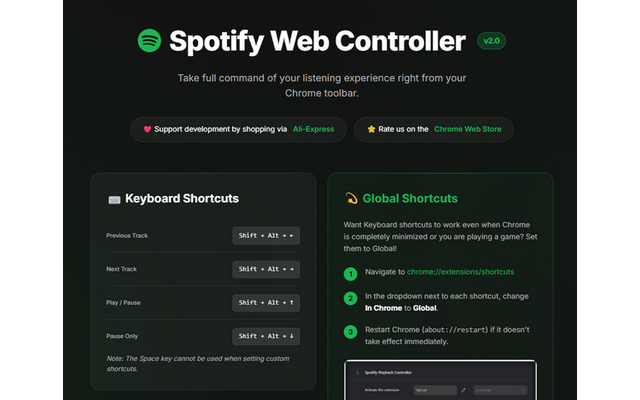
Dashboard
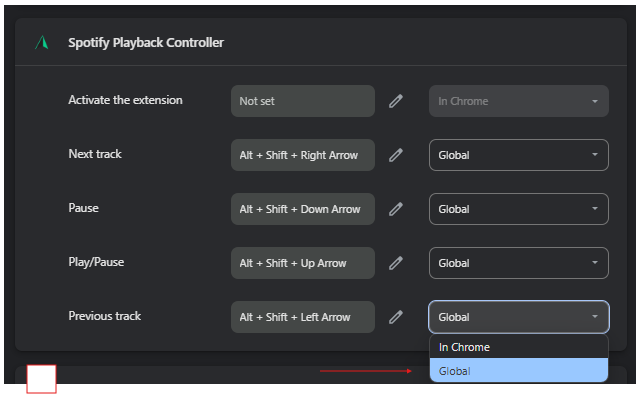
Shortcuts
Control Spotify Without Leaving Your Work
Global-capable hotkeys, a mini-player and local-only analytics for the Spotify Web Player.
❓ Frequently Asked Questions
It controls the like button on the Web Player, so your Liked Songs library updates.
Inside the popup, press L. Global commands cover play, pause, next and previous.
It can be if you spend your day working on a Chromebook. The Web Player plus an extension is a natural fit on Chrome OS.