How to Control Spotify While solving puzzles Without Switching Tabs
Play, pause and skip from anywhere in Chrome, so music never interrupts your work.
💡 Overview
If you spend your day solving puzzles, you already know how a small detour breaks concentration. Long puzzles pair well with steady background music. Leaving a puzzle tab to change a song is tedious.
Spotify-Web Playback Controller talks to the Spotify Web Player at open.spotify.com through a small content script, so you can play, pause, skip and go back using keyboard shortcuts or a toolbar popup. The Web Player stays in its own tab, out of sight, and you never have to visit it again.
🧭 A Day of Puzzle Fans
Long puzzles pair well with steady background music.
The problem: Leaving a puzzle tab to change a song is tedious.
The fix: Keep the Web Player in one pinned tab and never leave the puzzle.
🚀 Try It in Three Steps
- Open open.spotify.com in a Chrome tab and start any playlist.
- Pin Spotify-Web Playback Controller to your toolbar.
- Use Shift+Alt+Up to play or pause, and Shift+Alt+Right or Left to change tracks.
✨ What You Get
- Playback speed 0.5x to 2.0x: Presets at 1.0x, 1.25x, 1.5x and 2.0x, locked across track changes.
- Zero-polling design: A MutationObserver updates the UI only when the page changes, keeping CPU and memory use low.
- Mouse-wheel volume: Scroll over the player for fine volume steps, plus one-tap mute memory.
| Task | Switching tabs | Spotify-Web Playback Controller |
|---|---|---|
| Privacy | Depends on the tool | No credentials collected, local analytics |
| Resource use | A full tab in the foreground | Observer-based, near-zero overhead |
| Liking a song | Open the tab, click the heart | Tap the heart in the popup or press L |
| Focus impact | Context switch every time | Your work window keeps focus |
Note: it works with the Spotify Web Player at open.spotify.com only, and does not control the desktop app.
📸 See It in Action
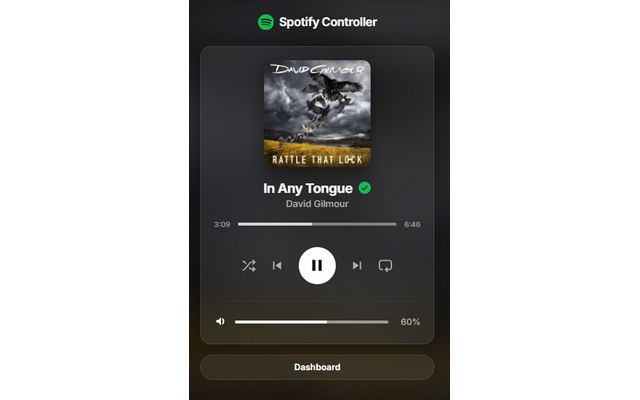
Mini-Player
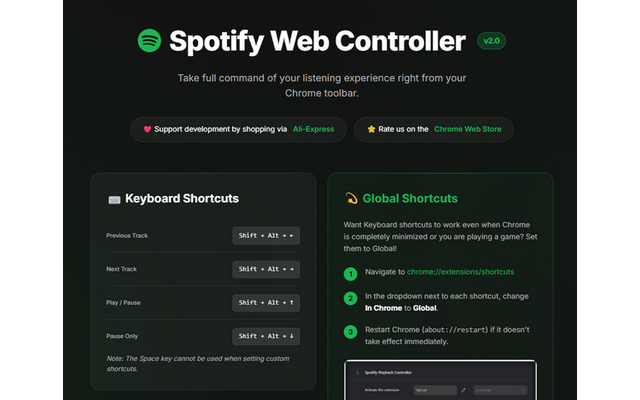
Dashboard
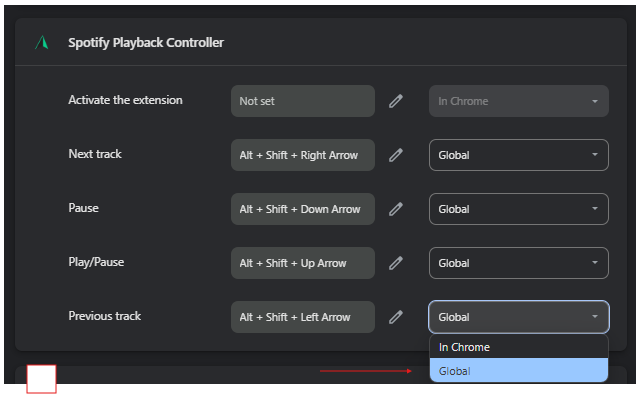
Shortcuts
Control Spotify Without Leaving Your Work
Global-capable hotkeys, a mini-player and local-only analytics for the Spotify Web Player.
❓ Frequently Asked Questions
Yes. The extension controls the Spotify Web Player, so keep open.spotify.com open in a tab. You never have to switch to it.
No. It is designed exclusively for the Web Player at open.spotify.com. Close the desktop app to avoid routing conflicts.
It can be if you spend your day solving puzzles. Keep the Web Player in one pinned tab and never leave the puzzle.